Online lessons
Is Opus 1 offering online lessons?
YES. Opus 1 is offering both in-person and online lessons. If you do not wish to attend your lesson in person, you do not need to request online lessons, your regular lesson will go at your usual time with your usual teacher, except it will be online. Our teachers are all (except a few exceptions) teaching from our studios and available in-person.
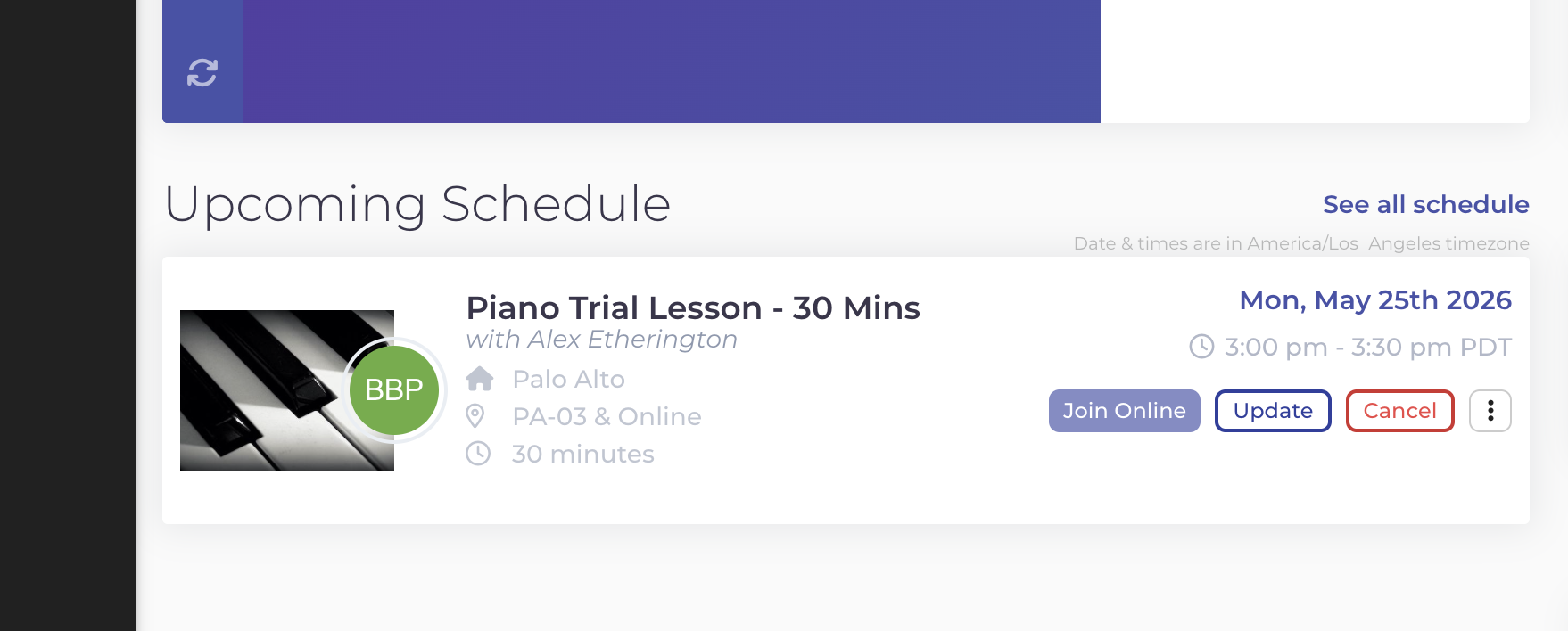
How do I join my online lesson? Click "Join Online" in opus1.io
About 15 minutes before your lesson, log into your opus1.io account. On your Upcoming Schedule, a purple Join Online button will appear next to Update and Cancel — click it to launch Zoom and join your teacher's room.
Before your first online lesson, make sure you have:
- A recent iPad or laptop with working speaker, camera, and microphone.
- The latest Zoom app installed (desktop or iPad).
- Access to your opus1.io account on that device.
Your teacher's Zoom room is the same week to week — the Join Online button always opens that teacher's room. If the button hasn't appeared, double-check the time and that you're on the correct opus1.io account, or contact us by email or live chat.
What do families think of online lessons?
Opus 1's online lessons have been received exceptionally well. In fact, 77% of our members from a recent survey indicated that they would either stay online exclusively or would like the flexibility to attend either online or on-campus on any given lesson.
Our family takes a total of five weekly lessons with various teachers at Opus 1 Music Studio and it has been great. With COVID-19 and shelter-in-place order, our initial worry was that we would have to halt all of our lessons. However, thanks to the Opus1 staff, we were able to switch over to online lessons without missing a beat! Now with the online lessons, it's as if we are able to bring the teachers to our home, or wherever we go in the future. Thanks Opus 1 Music Studio!
Sandy, Palo Alto
How to make the best of an online lesson?
Here are a few tips to make the best of an online lesson.
- Log into your opus1.io account at least a few minutes before your lesson so you don't lose lesson time to password resets — our staff is available to help 7 days a week.
- Use a recent iPad or laptop with a good quality camera, microphone, and speakers.
- Prefer a wired ethernet connection. If you must use Wi-Fi, sit close to the router.
- Use wired headphones if possible — Bluetooth headphones add latency and degrade music quality.
- Test your audio in the Zoom Test Meeting (https://zoom.us/test) a day before your first online lesson — not 5 minutes before.
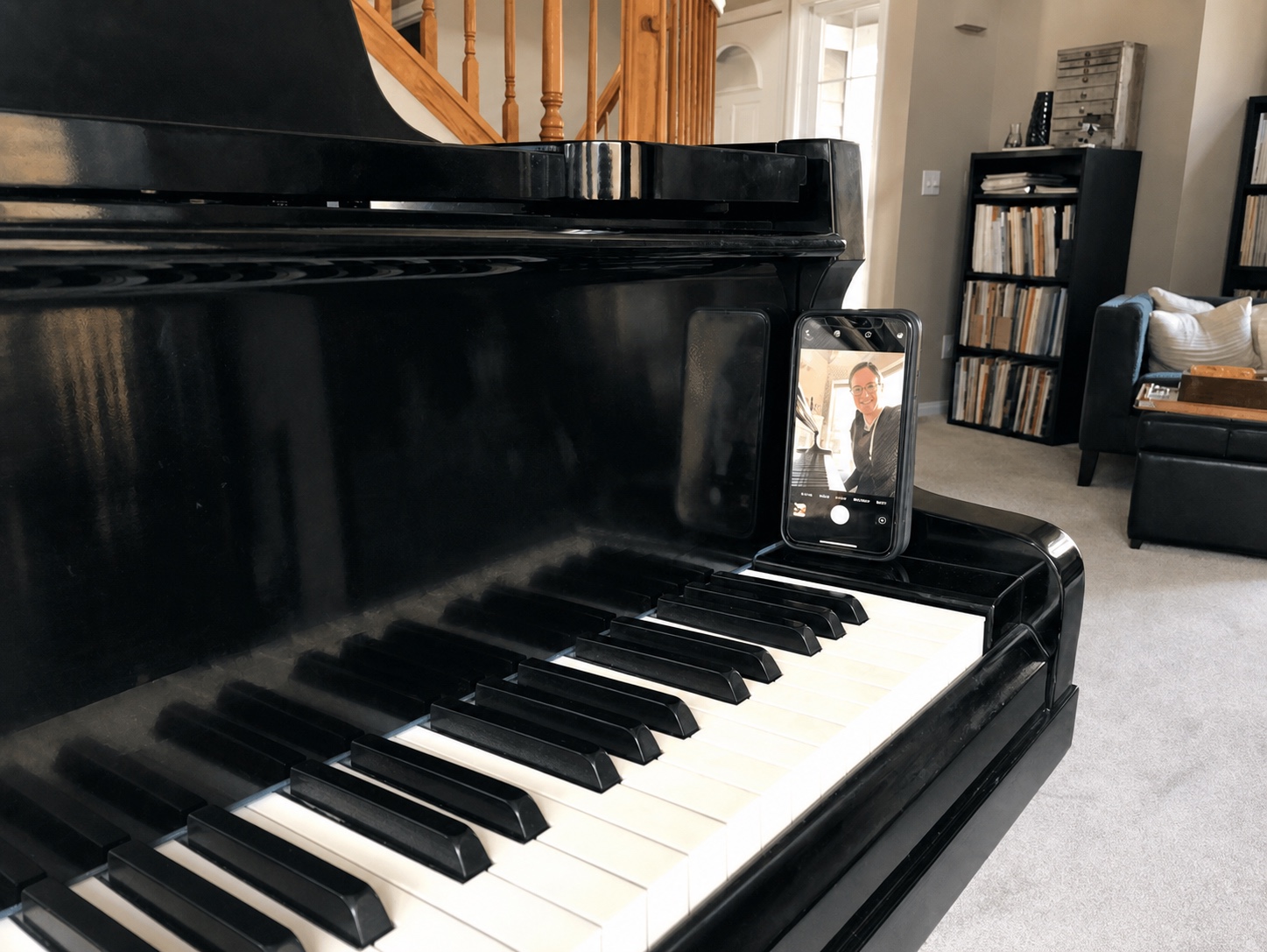
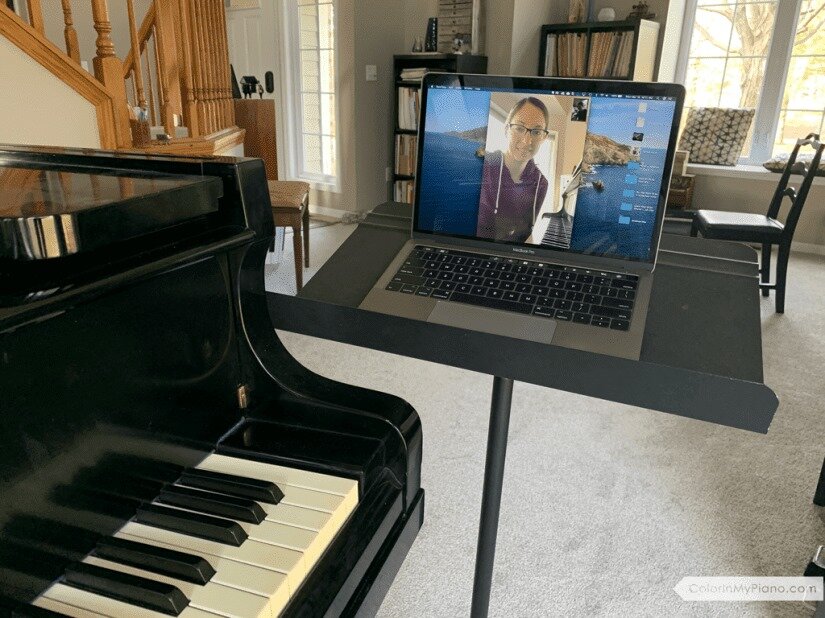
- Position the iPad or laptop so the teacher can clearly see the student playing the instrument (hands, posture, and the keyboard / fingerboard).
- Younger students may need a parent nearby to keep them focused during the lesson.
- Your teacher should already have the music you are working on, but it helps to have a PDF or photo ready to share over Zoom in case they need it. You can also email music to admin@musicopus1.com with the name of your teacher.
Best Zoom audio settings for music lessons
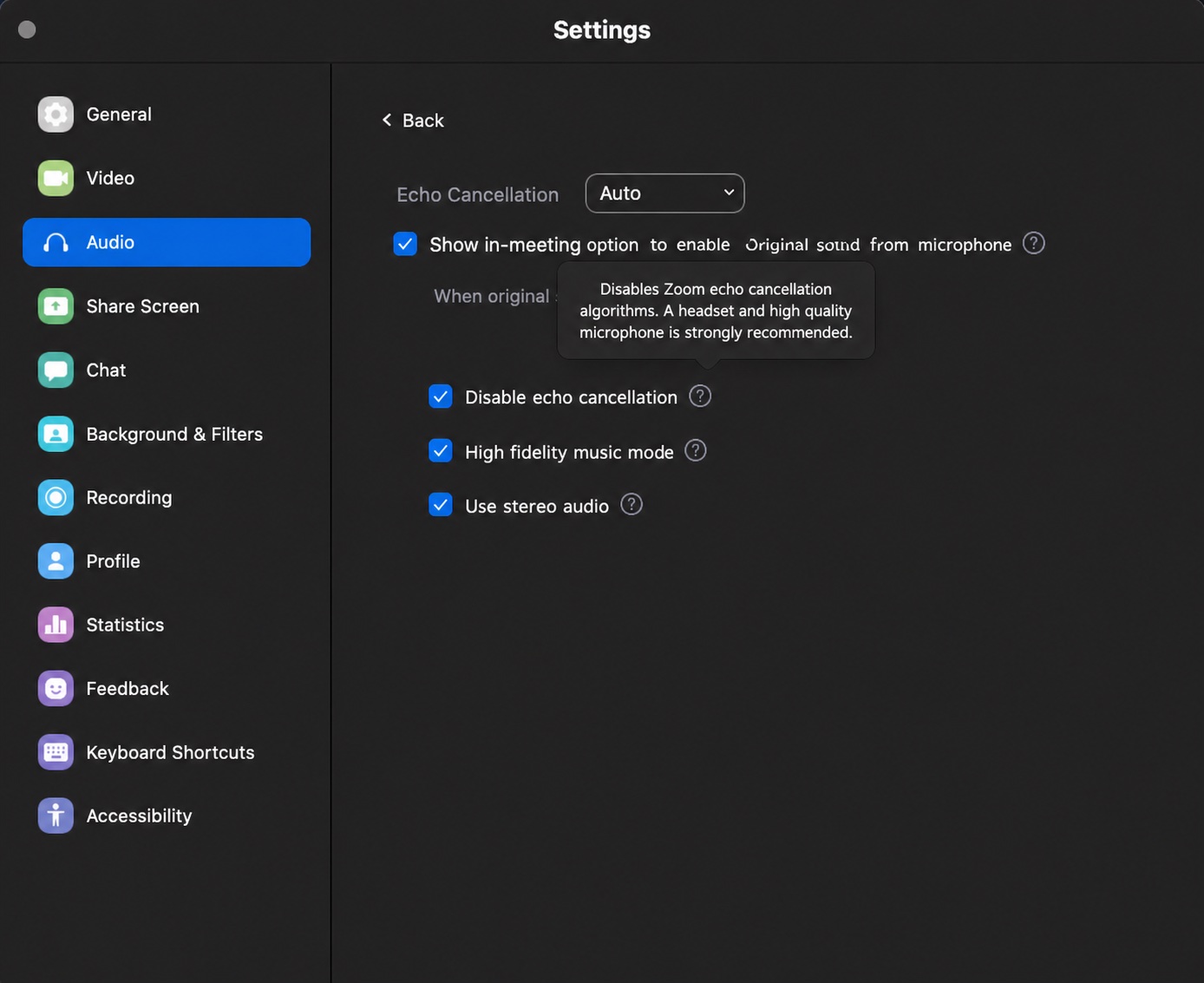
Zoom is optimized for speech, not music — its default noise suppression, echo cancellation, and audio compression can mute or distort instruments. Enable Original Sound for Musicians so Zoom transmits your instrument's full frequency range. Always make sure you're running the latest Zoom version (check via your profile picture → Check for Updates).
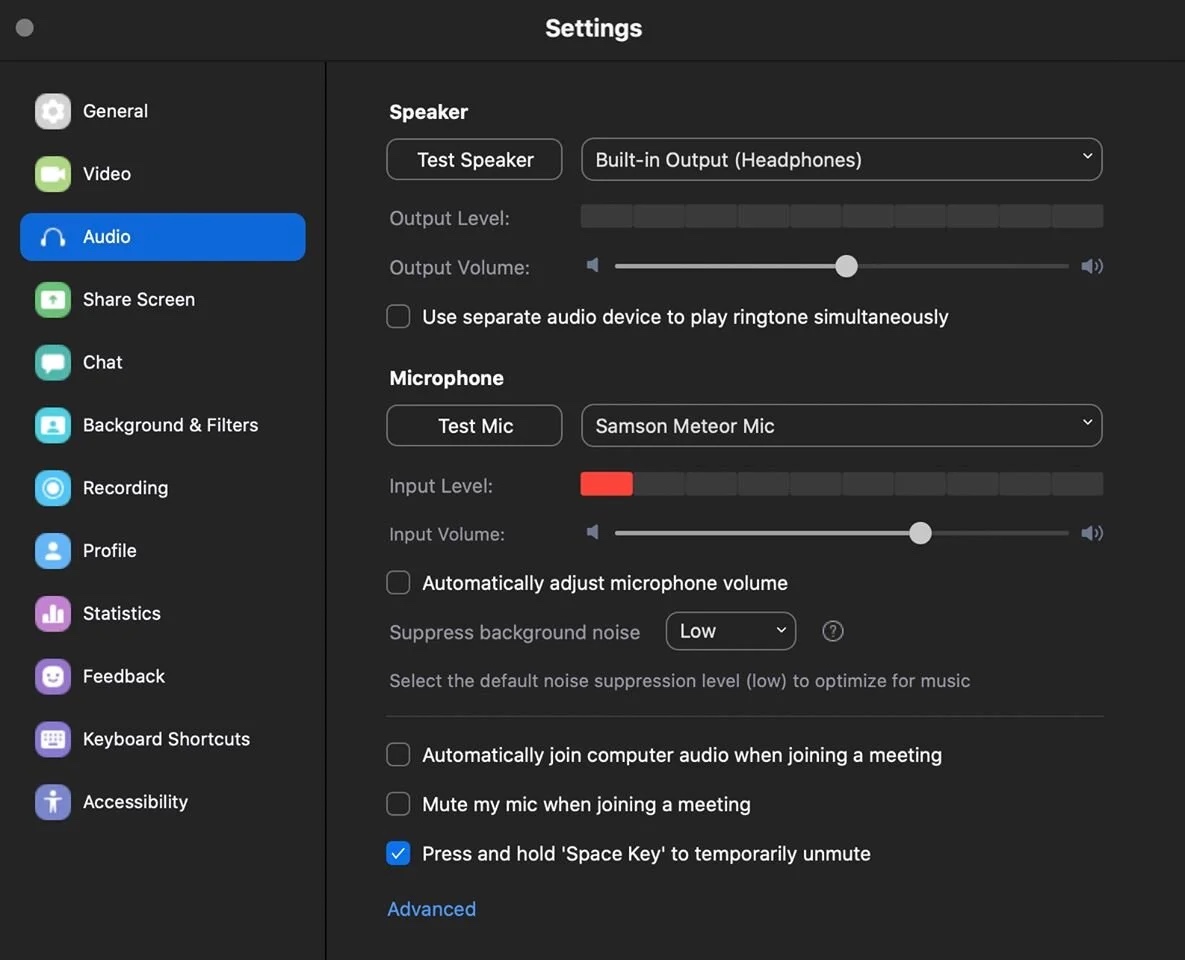
- Before the meeting, open Zoom Settings → Audio. Uncheck "Automatically adjust microphone volume."
- Select your external microphone if you have one — even a basic USB mic dramatically improves sound vs. a built-in laptop mic.
- Under Audio Profile, choose "Original sound for musicians."
- Check "High-fidelity music mode" — recommended only on a wired ethernet connection (uses more CPU and bandwidth).
- Check "Stereo audio" if you're using two microphones, a stereo instrument mic, or playing along to a backing track.
- Leave "Echo cancellation" ON if you monitor through speakers. Turn it OFF only if both you and the teacher are wearing wired headphones.
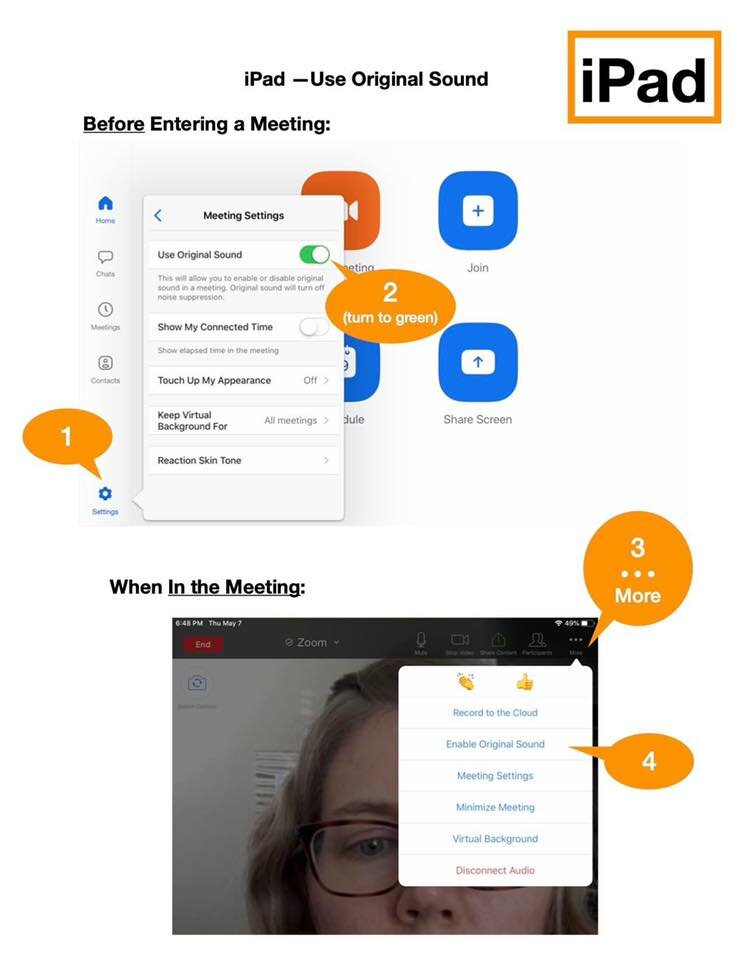
- In every meeting, click the up-arrow next to the microphone and turn "Original Sound for Musicians" ON — Zoom resets this for every session, so you have to re-enable it each time.
- iPad (post Nov 2024): enable "Original Sound for Musicians" in Settings → Audio before joining the meeting. It then appears in the in-meeting "More" menu.
- iPhone / Android: the full "Original Sound for Musicians" mode is desktop / iPad only. On phones, enable basic "Original Sound" under Settings → Audio.
Playing together: Live Performance Audio (advanced)
For teachers and students who want to play simultaneously Zoom now offers Live Performance Audio, a separate profile that lowers latency further than Original Sound for Musicians. It works on desktop only and has stricter requirements, but it makes collaborative playing far more workable than the standard mode.
- Available on the Zoom desktop app, version 5.14 or higher. Not available on phones or tablets.
- Wired headphones are mandatory for every participant — without them you'll get constant echo.
- Ethernet is strongly recommended. Wi-Fi and Bluetooth add latency that defeats the purpose.
- All participants must enable it: Settings → Audio → Audio Profile → Live Performance Audio. Then, in the meeting, click "Live Performance Audio: Off" in the upper-left to toggle it ON.
- Note: meeting recording is disabled while Live Performance Audio is active. Switch back to Original Sound for Musicians if you need to record.